Best Wireless CarPlay/Android Auto Adapter: Setup & Tips
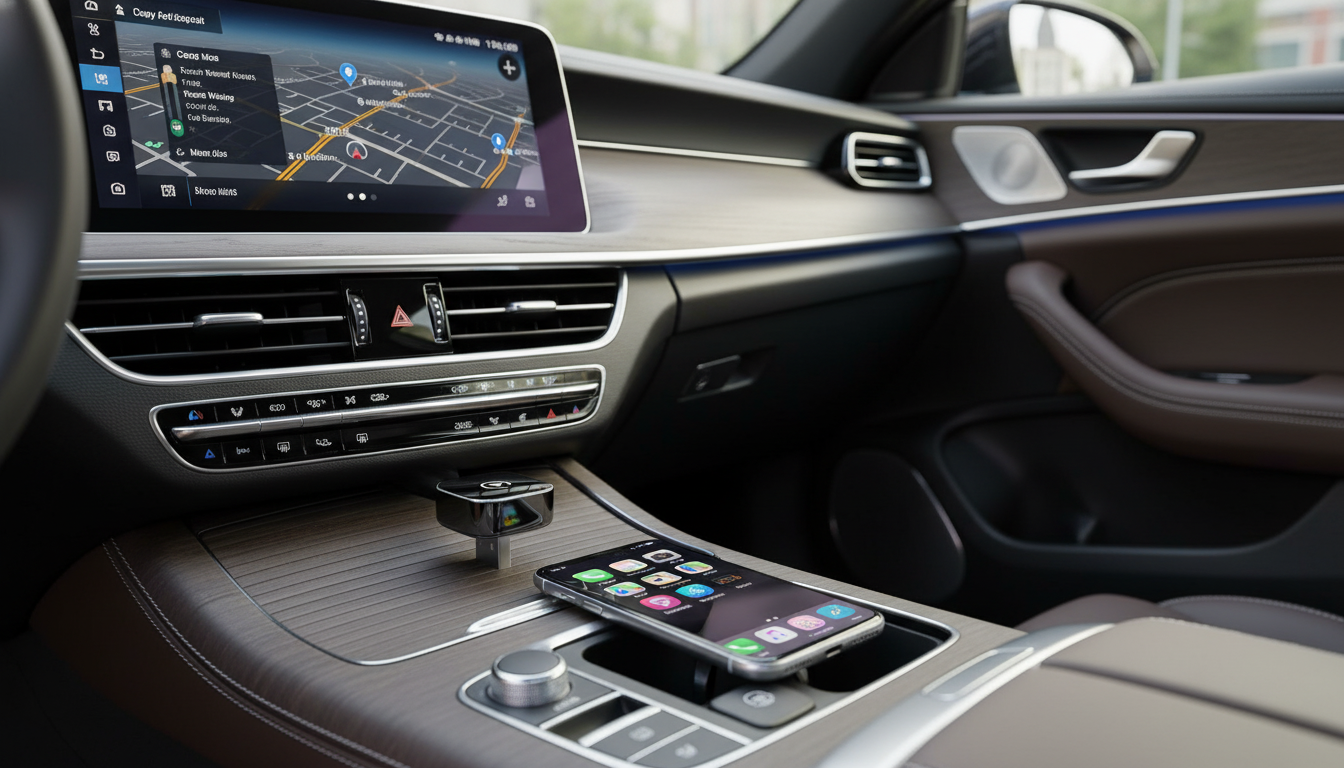
Wireless CarPlay & Android Auto Adapter: Cut the Cord Without Losing Features
A wireless adapter can turn a wired-only CarPlay or Android Auto setup into a cable-free experience, making it easier to hop in and go while keeping navigation, calls, and music on the factory screen. The right choice comes down to compatibility, connection stability, and how it behaves during everyday driving—short errands, long commutes, and multi-stop days.
What a wireless adapter actually does
A wireless CarPlay/Android Auto adapter is a small “bridge” that lets your phone project to your car’s infotainment screen without plugging in a cable every time.
- Plugs into the vehicle’s USB port that currently supports wired CarPlay or wired Android Auto
- Creates a wireless bridge so the phone connects over Wi‑Fi/Bluetooth while the car still “thinks” a wired device is attached
- Keeps the familiar dashboard interface for maps, messaging, music, and calls
- Does not add CarPlay/Android Auto to vehicles that never supported them in the first place
For platform specifics and supported features, Apple and Google maintain official overviews for Apple CarPlay and Android Auto.
Before buying: quick compatibility checklist
The fastest way to avoid returns and frustration is to treat compatibility like a checklist instead of a guess.
- Vehicle must already support wired CarPlay and/or wired Android Auto (from the factory or an aftermarket head unit)
- Confirm the adapter matches the phone type(s) used most often (iPhone for CarPlay, Android phone for Android Auto, or both)
- Check the car’s USB port type (USB‑A vs USB‑C) and whether a short extension cable is needed for fit
- If multiple drivers use the same car, look for reliable device switching and remembered pairing
- Consider regional infotainment quirks (some units are more sensitive to connection timing and power delivery)
| Item to check | What to look for | Why it matters |
|---|---|---|
| Car support | Wired CarPlay/Android Auto works today | Adapters don’t add missing platform support |
| Phone model | iOS/Android version supported | Older OS versions can cause pairing or app issues |
| USB port | USB‑A/USB‑C + stable power | Weak power can trigger dropouts/reboots |
| Multiple drivers | Memory for 2+ devices and easy switching | Reduces re-pairing hassle |
| Aftermarket head units | Known compatibility notes (if available) | Some units require specific handshake timing |
Setup steps that prevent most connection problems
Most “it won’t connect” issues come down to a missed step during first-time pairing. A clean setup typically stays stable afterward.
- Start by confirming wired CarPlay/Android Auto works with a direct cable
- Delete old Bluetooth pairings for the car and phone if the system has a history of conflicts
- Plug the adapter into the CarPlay/Android Auto USB port (not a charge-only port)
- Pair once, then allow the phone to connect automatically on the next ignition cycle
- If the system connects but audio stutters, move the phone away from USB hubs/chargers that may cause interference
Tip for busy vehicles: if the car has multiple USB ports, the “data” port is usually the one that previously worked with a wired phone for CarPlay/Android Auto. The others may only charge.
Daily use: what changes with wireless
- Faster get-in-and-go for short trips where plugging in feels like a chore
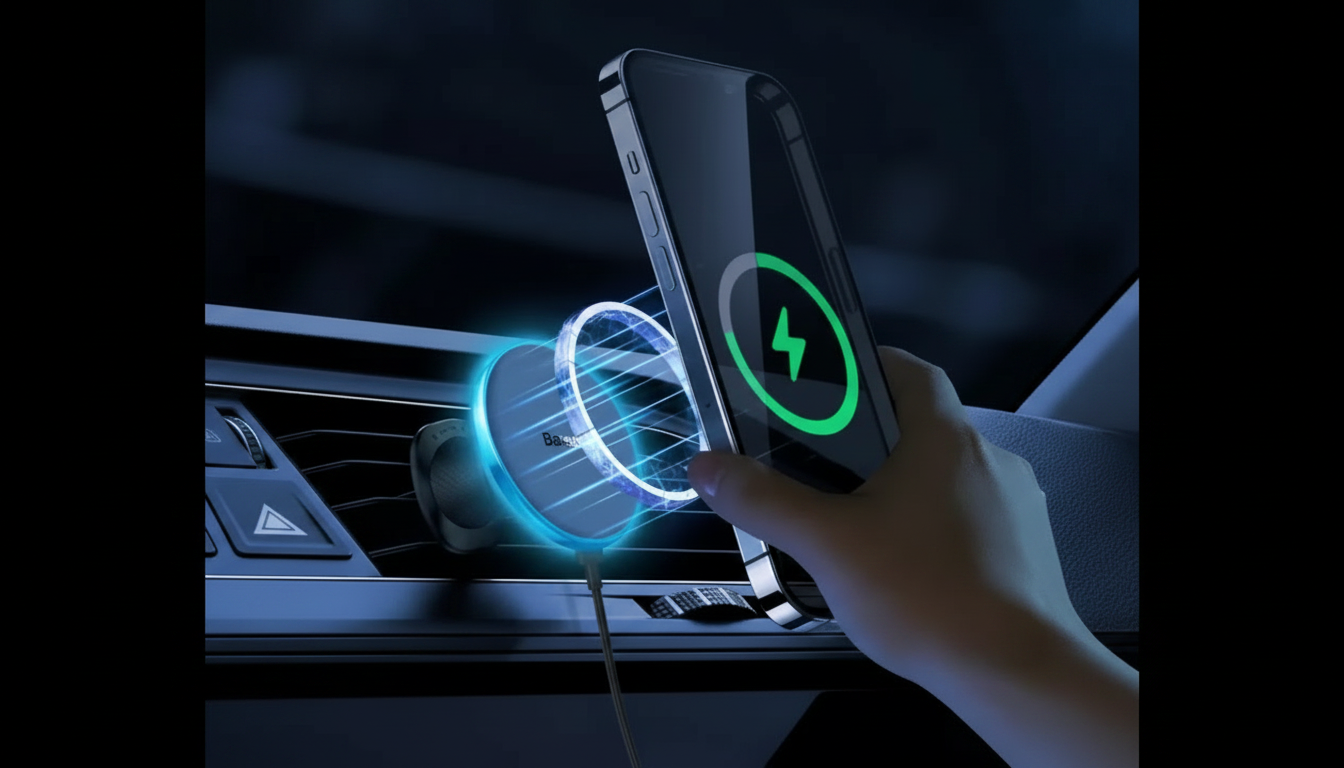
- Phone can stay in a pocket or bag; consider adding a dash or console wireless charger if battery drain matters
- Expect a small delay compared with wired for some actions (audio, voice assistant prompts) depending on the vehicle and phone
- Calls and maps generally remain smooth when the adapter and infotainment system have a stable handshake
- Parking garages and dense Wi‑Fi areas can occasionally impact wireless performance; restarting the infotainment session usually resolves it
Even with a great connection, the safest experience is still the simplest: set a destination before rolling and keep interactions minimal. The NHTSA’s guidance on distracted driving is a helpful reminder to rely on voice controls and avoid fiddling with screens.
Performance factors that matter more than the spec sheet
On paper, many adapters look the same. On the road, a few real-world behaviors tend to separate the smooth experience from the annoying one.
Spotlight: Wireless CarPlay & Android Auto Adapter
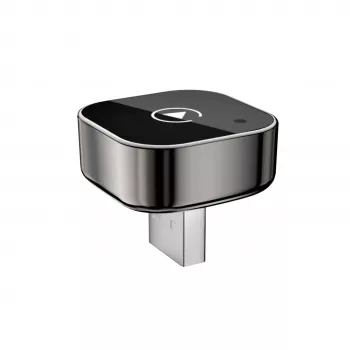
If the car already supports wired projection, a compact adapter can keep the factory interface while removing the daily cable routine. The Wireless CarPlay & Android Auto Adapter is built for that simple upgrade: plug it into the compatible USB port, pair once, and let it reconnect automatically on future drives.
More in-stock picks
- Homework Help Made Easy Toolkit for Parents – Printable Guide for Creating Study Habits, Homework Strategies & Independent Learning
- Afro Styling Comb for Natural Curly Hair & Real Hair Wigs
- Straight Hair V-Comb Styling Brush for Smooth, Sleek Results
Troubleshooting: fast fixes for common issues
FAQ
Will a wireless adapter work if the car only has Bluetooth audio but no CarPlay or Android Auto?
No. The vehicle (or aftermarket head unit) must already support wired CarPlay or wired Android Auto—Bluetooth-only systems won’t gain the full CarPlay/Android Auto interface from an adapter.
Does wireless CarPlay or Android Auto drain the phone battery faster?
Yes, it can. Wireless projection typically uses more power than a wired connection, so a car charger or a wireless charging pad is helpful for longer drives.
Can two drivers use the same adapter with different phones?
Usually, yes. Many setups remember multiple devices and tend to auto-connect to the last phone used; if it keeps grabbing the wrong phone, switch the active device in the car’s connection menu or clear pairings and re-pair in the preferred order.










Leave a comment